The same setup, repeated by hand
Prepare supported Mac settings and weekly schedules, then run a saved app-and-file launch sequence with individual delays.

Show-computer setup, monitoring & shutdown · macOS
Prepare, monitor and shut down your show Mac from one place.
The problem
A show computer needs more than an opening sequence. Show Central brings preparation, system observations, MIDI troubleshooting and application-closing rules into one configurable workspace.
Prepare supported Mac settings and weekly schedules, then run a saved app-and-file launch sequence with individual delays.
Compare the expected system with available observations in Diagnostics, then inspect MIDI activity in the separate MIDI Monitor tab.
Choose how applications close and prepare a supported Ableton Live Save As rule. On a failed save, unexpected prompt or app that stays open, shutdown stops rather than forcing it closed.
The complete show-computer cycle
Show Central brings the machine-level steps around a performance into one repeatable workflow.
Schedule your Mac to power on or wake, or start when power is connected on supported models.
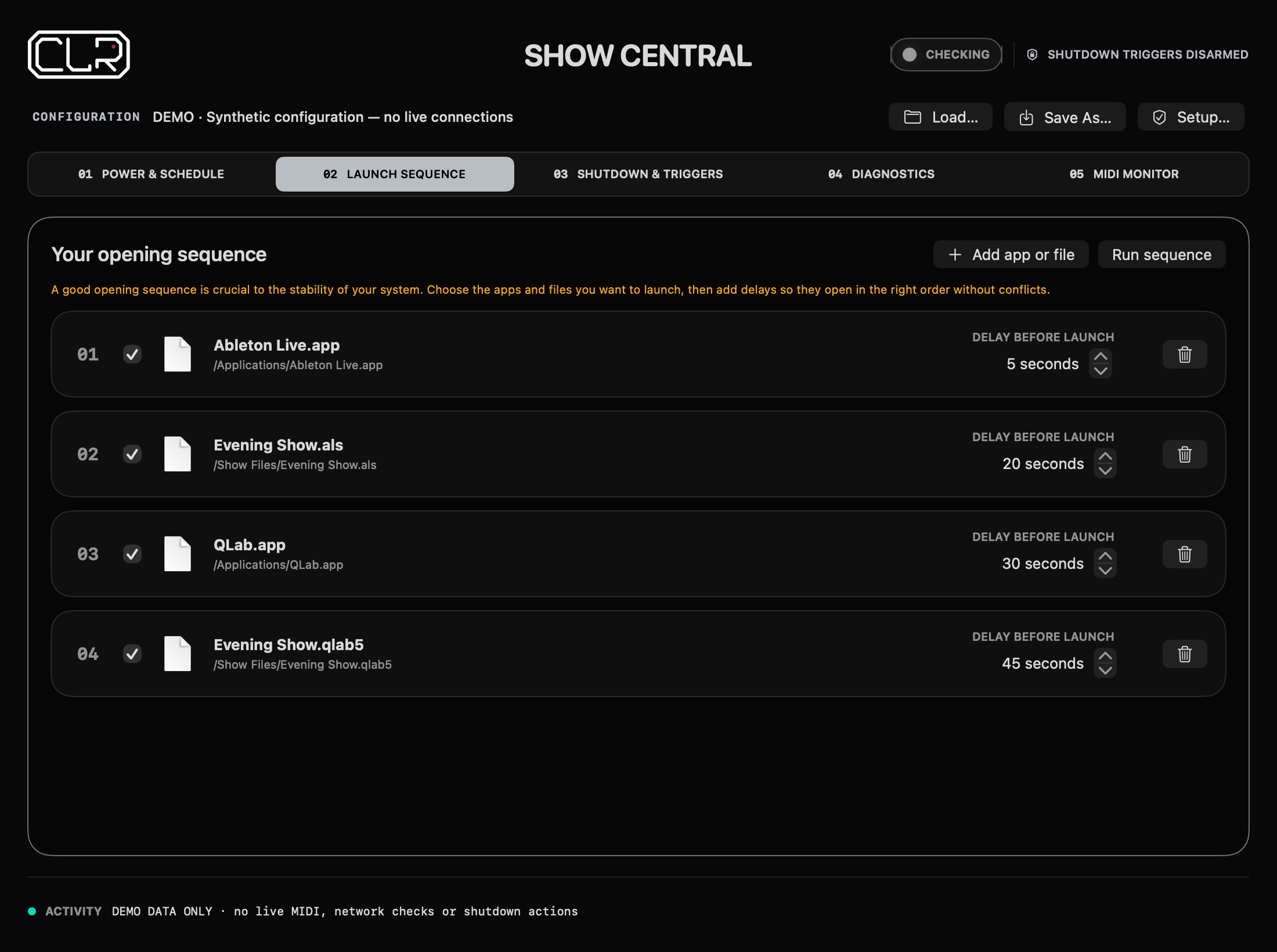
Open applications and show files in a timed sequence.
Review system and network observations, and inspect MIDI messages in their own tab.
Apply your save/quit rules, then shut down at a planned time or from an armed trigger.
01 / Power & schedule
Choose how your Mac starts: schedule it to power on or wake at a set time, or enable power-on-at-connect on supported Macs. Especially useful for rack-mounted Macs, power-on-at-connect brings the computer on when you power up the rack—no reaching inside for the power button.

02 / Launch sequence
Your hardware, drivers, operating system and software work as one machine. Give your audio interface time to initialize before opening Ableton Live, and your network time to establish before launching the apps that depend on it. A carefully timed startup helps avoid conflicts and makes the whole system more reliable.
03 / Application closing rules
Set the closing behavior before the show: save existing files and quit, or quit without saving. If an application needs Save As, choose to stop shutdown or use a prepared rule for the supported Ableton Live workflow.
Prepared Save As rules currently support Ableton Live’s English-language untitled Set workflow, not every application’s save dialog. “Quit without saving” can discard unsaved work. Read the Save As rules guide →
Schedule shutdown for a planned time, or trigger it with OSC, a learned MIDI Note/CC, or your own keyboard shortcut. Immediate triggers stay disarmed until you arm them. The optional 5–120 second countdown gives you time to cancel before applications start closing; weekly scheduled shutdown has its own enable control.


04 / Diagnostics & network health
Give Control, Audio and Other networks their own roles, then compare configured devices and applications with available observations. Diagnostics brings computer metrics, expected applications, networks, MIDI ports, USB and recent changes into one workspace.
The app labels this tab Diagnostics. Network inventory is the passive macOS ARP cache: absence is not proof a device is offline, and audio, clock and device reachability are not verified. Read the Diagnostics guide →
05 / Integrated MIDI Monitor
The dedicated MIDI Monitor tab puts CLR’s message-inspection tools inside Show Central. Select hardware inputs, receive directly from other software, and observe output destinations when the bundled output observer is available.
Monitor capture is independent of shutdown-trigger MIDI Learn; it does not send or reroute MIDI or change your shutdown mapping. Monitoring starts off. Read the MIDI Monitor guide →

Before you install
The current build targets Apple silicon and requires macOS 13 or later. Power-on-at-connect is a separate, hardware- and OS-dependent feature; the app checks support and disables that control when unavailable.
Automatic login is unavailable while FileVault is enabled and allows physical access to the account without a login password. Use it only where that security trade-off is appropriate. Apple’s automatic-login guide ↗
Current build note: opening Show Central restores your configuration; automatically starting the saved launch sequence still needs to be implemented.
No. Apps may lack scripting support, require permissions or show unexpected prompts. Test your actual show apps with disposable files before live use. You can prepare an Ableton Live Save As destination and filename rule for the supported English-language untitled-set workflow; Show Central verifies the expected file before continuing. “Quit without saving” can discard unsaved work.
The Setup assistant explains each permission.
Use an isolated, trusted show network only. The OSC token is not encryption and offers no replay protection. Do not expose the OSC port to the internet.
Documentation
Browse the Show Central 0.3.9 help book: power and launch setup, application-closing rules, prepared Save As, Diagnostics, MIDI Monitor, permissions and troubleshooting. The images above are rendered from the current five-tab app source with demo data, not live system measurements.
CLR software / Show Central
Bring Mac preparation, network and MIDI observations, and application-closing rules into your show routine.
macOS 13+ · Current build: Apple silicon
US$23.99Planned price · purchasing not open yet
Checkout not open yetPurchasing is not live yet. Release packaging and checkout details are being finalized.
Ask about availability →